How to Set Boundaries With Clients Around Email and Messaging

Tell new clients in session one how between-session messages will be handled, in writing, with the exact wording you want them to read.
The reason wording matters is that emails between sessions don’t go wrong at the receiving end. They go wrong at the reply. A logistical question can pull a long, thoughtful reply that does unpaid clinical work, and once a channel works that way the expectation embeds and you spend too many hours in admin work for no good reason.
Replies cost time and they thin the next session, because the clinical content has already been half-processed by email.
The wording worth giving new clients reads roughly like this:
“You can email me between sessions about scheduling or to send me something for our next meeting. I read these the next business morning and reply within a day or two. The therapeutic work itself, the thinking together, happens in session. If something feels urgent before then, please call the crisis line at [number] or go to your nearest emergency department.”
That paragraph tells the client when you read messages, how you respond to them, and what they need to do in case of a crisis. It doesn’t refuse anything or reject anyone, and that’s important. The typical, “I am not available unless you pay me” attitude is how you lose future paid sessions. Instead, you want to set the right boudaries that make your service still feel like a premium.
One option is what I mentioned above, which is to keep using direct emails with clients. The better way is to use your my-cbt portal for all communication with clients.
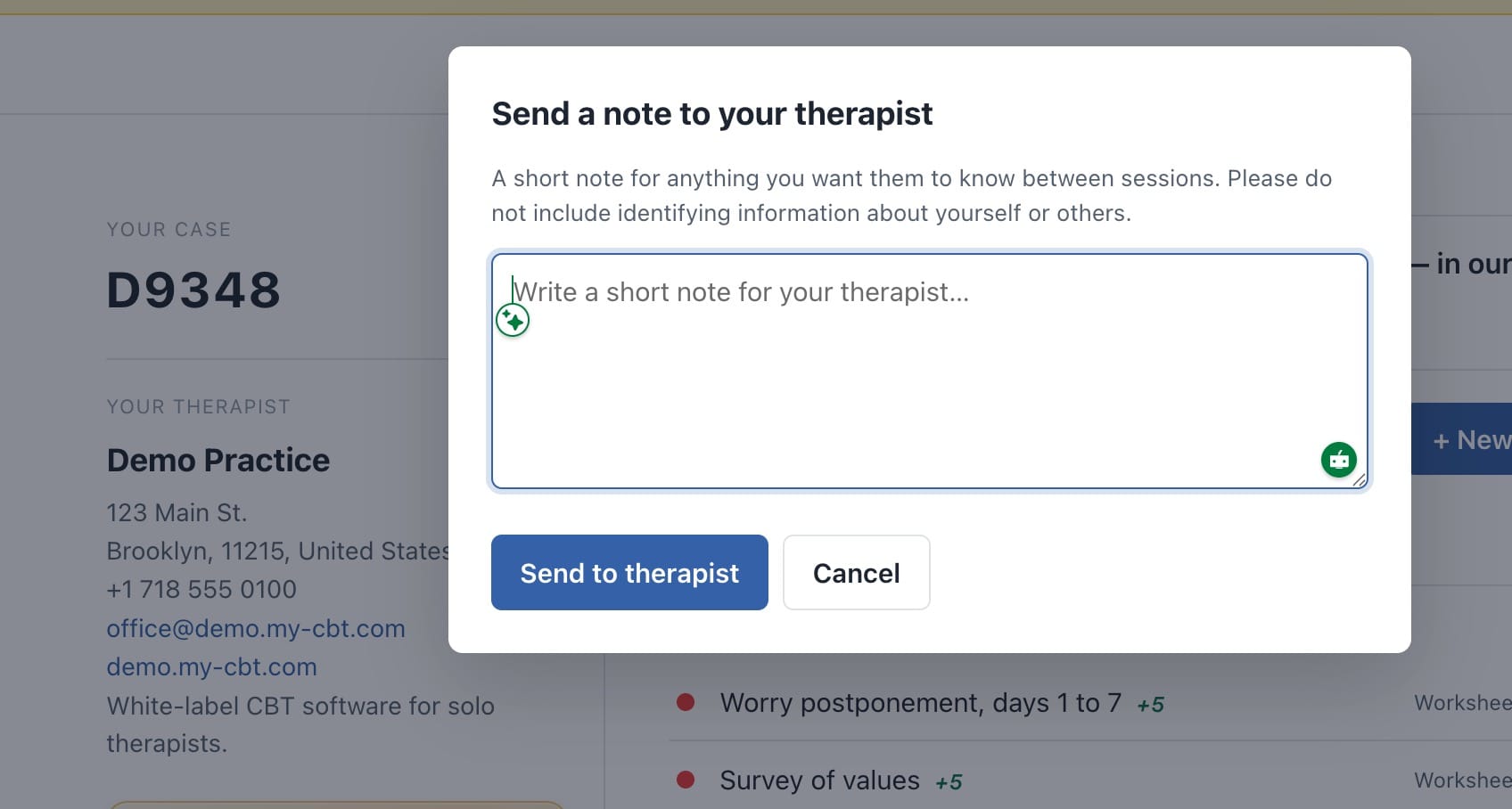
You can even enable or disable the “+ Send a Note” function in any case file or globally:
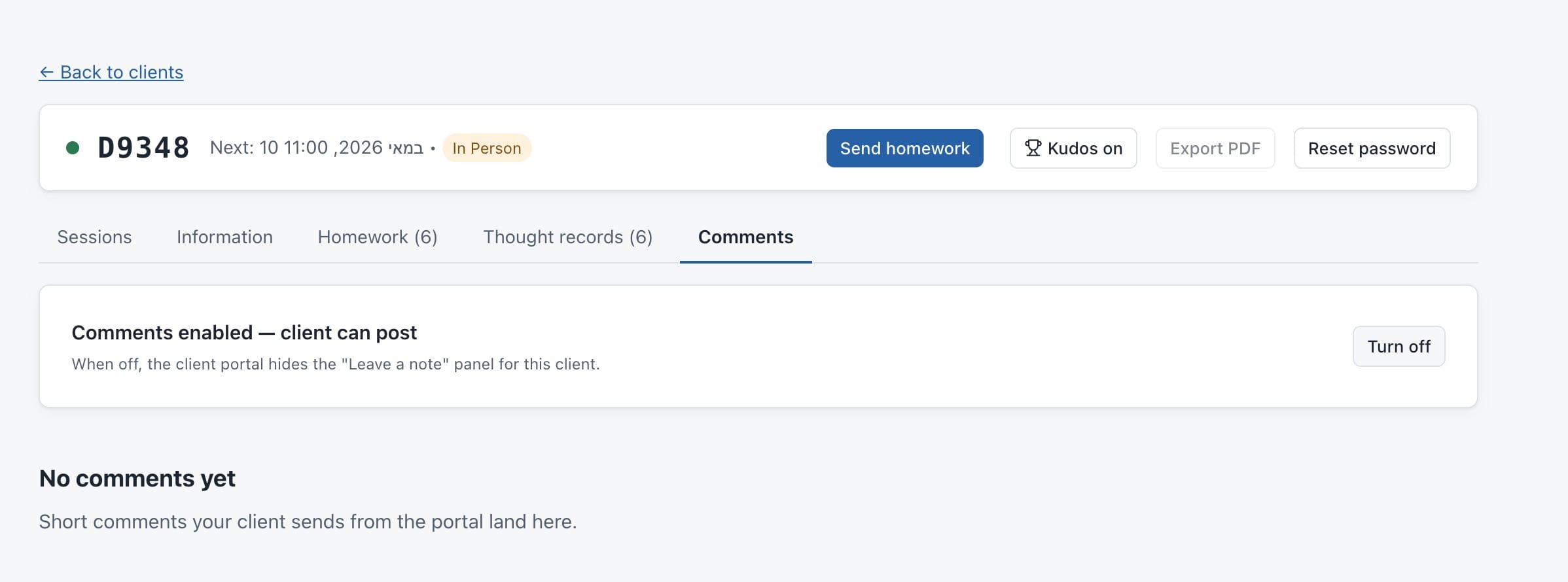
Instead of having to reply to an email, you get notified inside your portal, and the client’s message is automatically inserted into their case files. If they have an issue with an assignment you gave them, for example, they can send the question via the clients’ portal. You can review it whenever you have the time and send them back a revised assignment. It takes seconds rather than 30 minutes. You don’t need to search for files on your computer or to think through a long reply by email. You always have the client’s entire history on a single page, including notes and questions they’ve sent via the client’s portal. You can also export or print the entire file whenever you wish.